Planogram Examples by Store Type
Retail planogram examples for six kinds of store, with how each is planned and what buyers expect from a supplier. Open any of them in a limited demo of GoPlanogram.
Trusted by brands and retailers worldwide, across CPG, pet, hardware, c-store, and more











- workspace_premium
Employee owned since 1994
Built by Northwoods Software, shipping developer and enterprise tools for over 30 years.
- vpn_key
SSO supported
SAML and OIDC single sign-on for teams that need it.
- support_agent
Support included
Handled by the engineers who build the software.
- upload_file
No rebuild required
Import your existing PSA files and catalogs.
Choose a store type
Each example is a working planogram for a real store category, with a guide to how it's planned and what buyers look for. New to planograms? Start with what a planogram is.
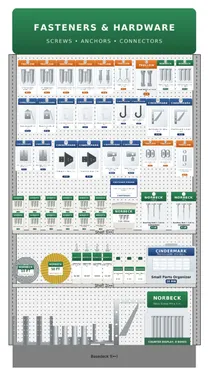
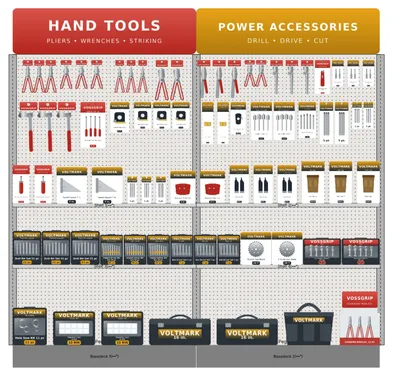
Hardware store planogram
A 4-foot fastener section and an 8-foot hand and power tools section, on pegboard and shelves.
See the examples arrow_forward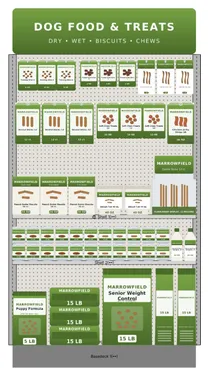
Pet store planogram
A 4-foot dog food and treats section: treats on pegboard, wet and dry food on shelves, big bags on the bottom.
See the example arrow_forward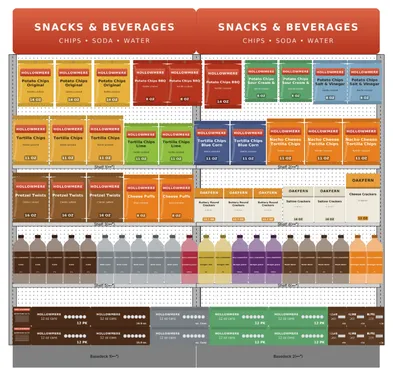
Grocery store planogram
An 8-foot snacks and beverages section: chips, pretzels and crackers over 2-liters, juice and 12-packs.
See the example arrow_forward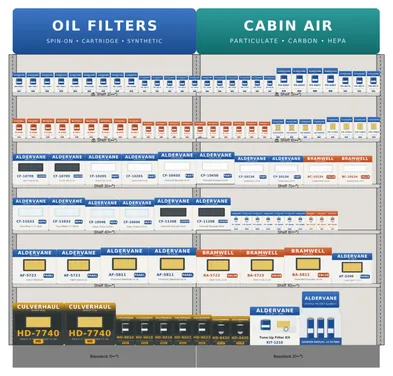
Auto parts store planogram
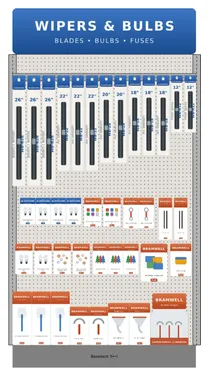
An 8-foot filter wall and a 4-foot wipers and bulbs section, sorted by part type and size.
See the examples arrow_forward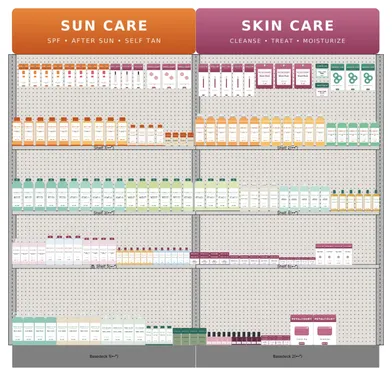
Health and beauty planogram
An 8-foot sun care and skin care section, with hair care, bath, lip, nail and beauty tools.
See the example arrow_forward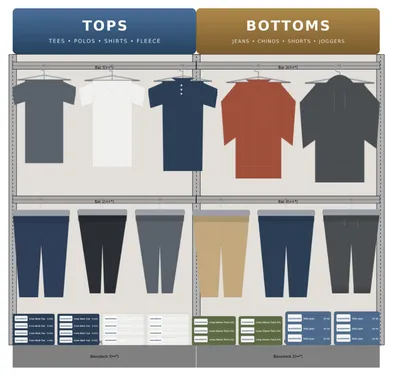
Clothing store planogram
An 8-foot apparel wall: tops on hanging bars over the bottoms they go with, folded stock below.
See the example arrow_forwardHow to make an effective planogram
- 1
Start from the space you are given
The buyer sets the feet, shelves and pegboard your line gets, usually by sending the current planogram. Work inside it, and bring sales if you want more.
- 2
Gather product data
Dimensions, case packs and sales for every item, so fit and facings rest on real numbers rather than guesses.
- 3
Segment and block
Group products the way shoppers decide: by category, then brand or use, with sizes running in one direction.
- 4
Set facings by sales
Give each item space in line with how fast it sells: enough to hold a case pack plus what sells between deliveries.
- 5
Hand the buyer what they need
A schematic, an item list with positions and facings, and a PSA file when the retailer plans in JDA / Blue Yonder.
Try it in GoPlanogram
A limited demo of GoPlanogram, stocked with demo products: open an example, move products, change facings and add shelves. Your own catalog, saving, PSA files, reports and analytics are in the full version.
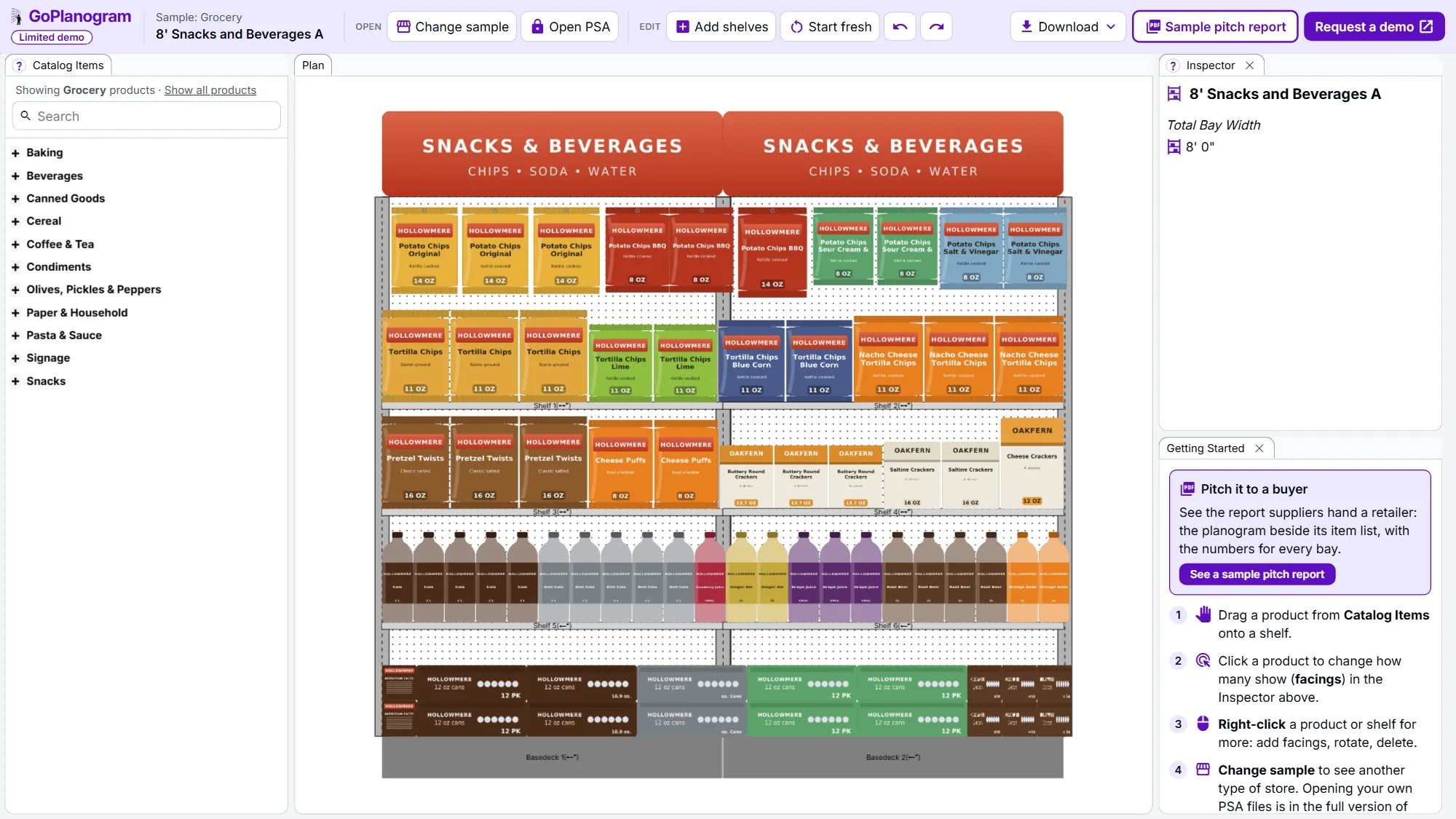
A limited demo of GoPlanogram, with fictional demo products. No signup needed. Works best on a computer or tablet.
See how planograms work
Move products, change facings and add pegboard hooks in a working planogram editor.
Try out a layout idea
Rearrange an example or sketch a new one with demo products, to test an idea for blocking, facings or a new fixture.
See what a buyer gets
Open the sample pitch report: the planogram beside its item list, with the numbers for every bay, the way suppliers present it.
What this demo leaves out
The demo is GoPlanogram with most of it switched off. The full version is what suppliers and retailers plan with every week, with their own catalog, data and team.
| Feature | This demo | Full GoPlanogram |
|---|---|---|
| Drag-and-drop products onto shelves and pegboard | check Included | check Included |
| Example planograms with demo products | check Included | check Included |
| Download as an image | check Included | check Included |
| Import and export JDA / Blue Yonder PSA files | Not included | check Included |
| Your own product catalog, images and dimensions | Not included | check Included |
| Save, version and share planograms with your team | Not included | check Included |
| Every fixture type, fully configurable | Not included | check Included |
| Sales and margin heatmaps, space-to-sales reports | Not included | check Included |
| Pitch-ready PDF reports for buyers, plus spreadsheets and CSV | Not included | check Included |
| Compare a proposal with last year's planogram | Not included | check Included |
| Reusable components, templates and assortments | Not included | check Included |
Planogram FAQs
- What is a planogram?
- A planogram is a diagram of a retail fixture that shows where every product goes: which shelf or hook, how many facings, and in what order. Retailers use planograms to keep stores consistent, and suppliers use them to propose how their products should be merchandised.
- Do I need an account to try the demo?
- No. Open any example in the demo and rearrange it in your browser, with nothing to install; it works best on a computer or tablet. The demo is a limited version of GoPlanogram, planogram software for suppliers and retailers.
- Can I use my own products?
- The demo uses a catalog of over 1,000 demo products. In the full version of GoPlanogram, you plan straight from your own catalog, with your images, dimensions and sales data, or bring products in with a JDA / Blue Yonder PSA file.
- Can I open a JDA or Blue Yonder PSA file?
- Yes, in GoPlanogram. Import PSA files from JDA / Blue Yonder Space Planning with the products, positions and performance data they carry (one file can hold many planograms), and export back to PSA when a retail partner asks for one. The demo leaves PSA files out; request a demo to see them with your own.
- Is my work saved?
- No. The demo does not save to an account, so download an image before you close the page. GoPlanogram saves, versions and shares planograms with your team.
Plan with your own catalog
The full version of GoPlanogram adds your own catalog and images, saved and shared planograms, sales and margin analytics, and reports your buyers and stores can use. Packages start at $5,500/year.
If you sell to retailers, see what to look for in planogram software for suppliers.
Request a demo
A live walkthrough with the team that makes GoPlanogram.
See everything in the full version
Read the full feature list and our published pricing, no form required.

